Introduction:
In this step, you will learn how to access the product catalog, explore available products, and import them into your Mysellerhub account.
In this section, you will learn:
- How to add a product to your Mysellerhub account.
- How to access the Onlihub catalog.
- How to browse and search for products.
Important: The product catalog is powered by Onlihub, a partner platform integrated with Mysellerhub. To access it, you will need to provide your email address. You can learn more about Onlihub here.
Stages of the process:
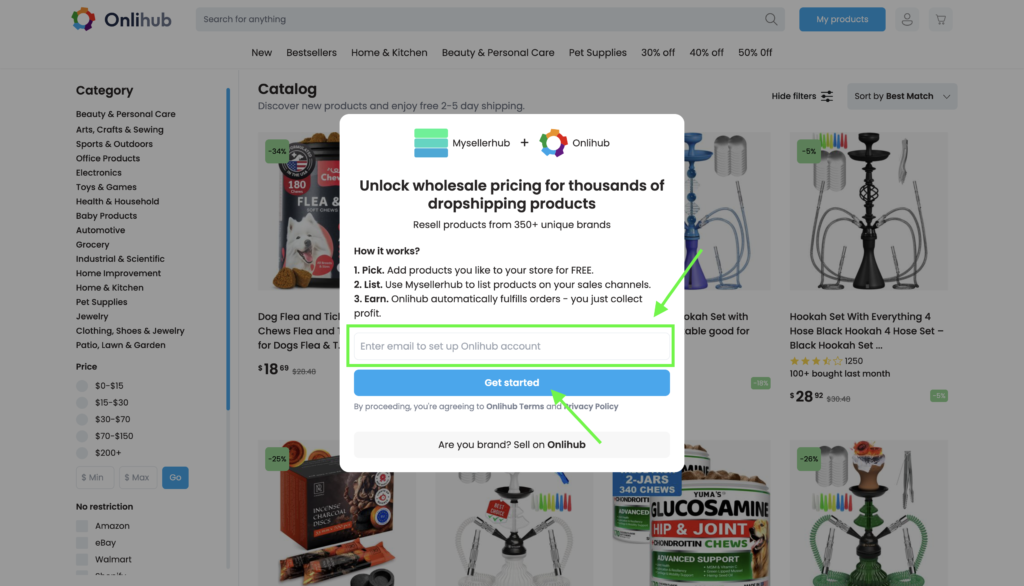
1. To access the Onlihub product catalog, enter your email in the provided field and click “Get started”.
2. After submitting your email, you will see a confirmation message stating that an activation link has been sent to your inbox. Open your email and look for the Onlihub activation email. If you don’t see it, check your spam or promotions folder.
This step is required to place orders in the future, but you can start browsing the catalog without activation.
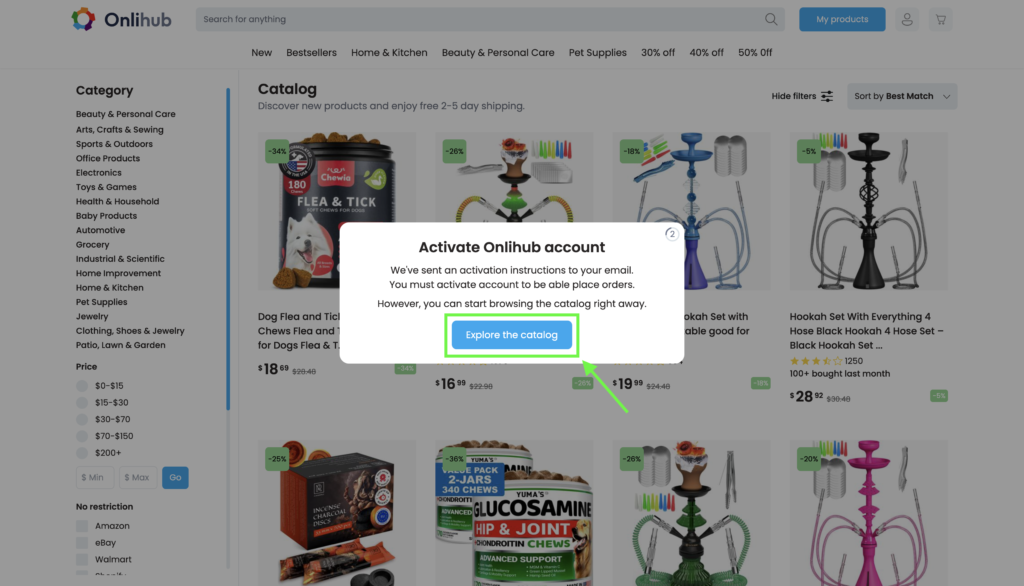
Important: Even if you skip activation now, make sure to complete it later to fully access all features, including order placement.
3. Once you’re in the Onlihub catalog, find the products that are right for your store. Check the price, discount and reviews. Click on a product to open its detailed page.
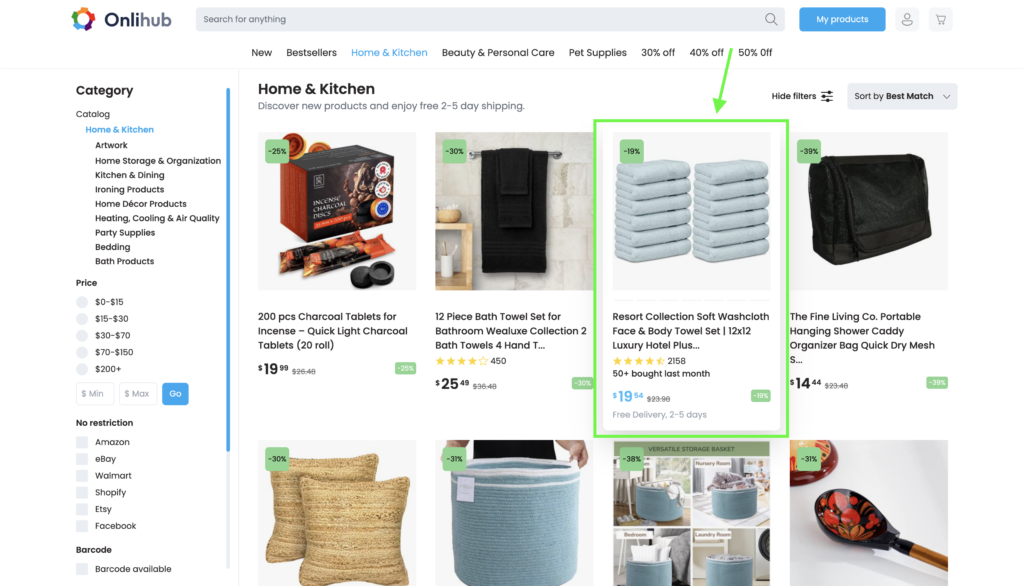
Tip: To speed up your search, use catalog filters, search keywords, and quick categories.
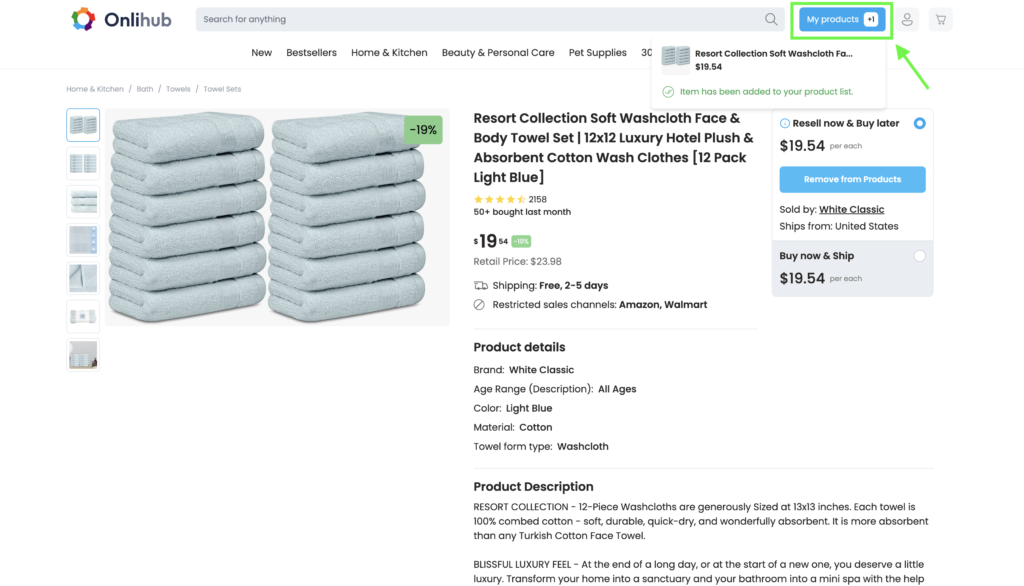
4. On the product page, you can view more detailed information about the product. After researching, click “Add to Products” to add the product to Mysellerhub.
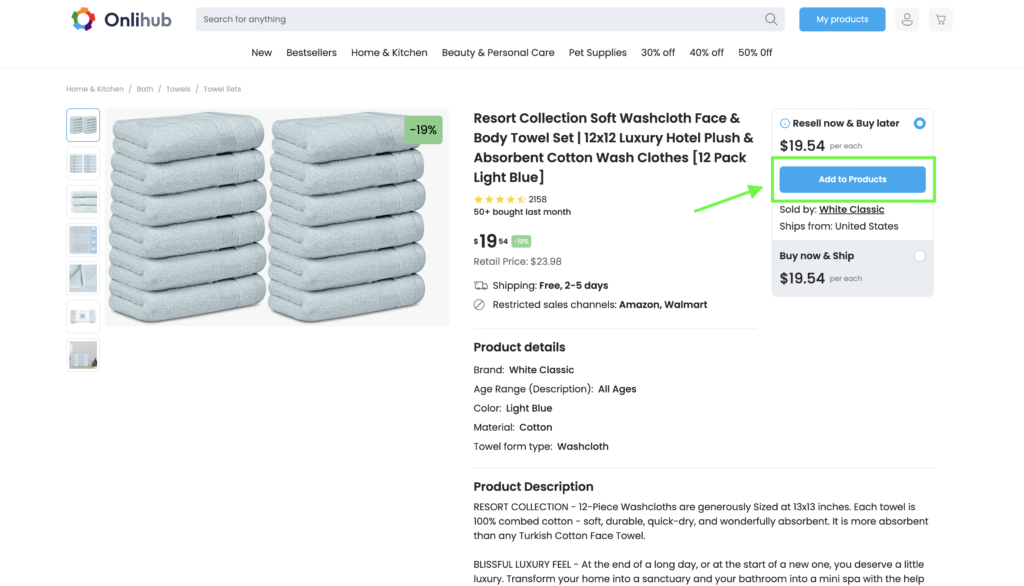
5. Once the product has been added, click “My Products” at the top of the page to be redirected to the section with a list of your products.
Final Thoughts:
Congratulations!
You have successfully added a product to Mysellerhub. In the next step, we will guide you on how to connect your store.