Introduction:
In this article, you will learn how to make a draft listing from a product and publish it in your store.
In this section, you will learn:
- How to create a draft listing.
- How to publish a listing.
Stages of the process:
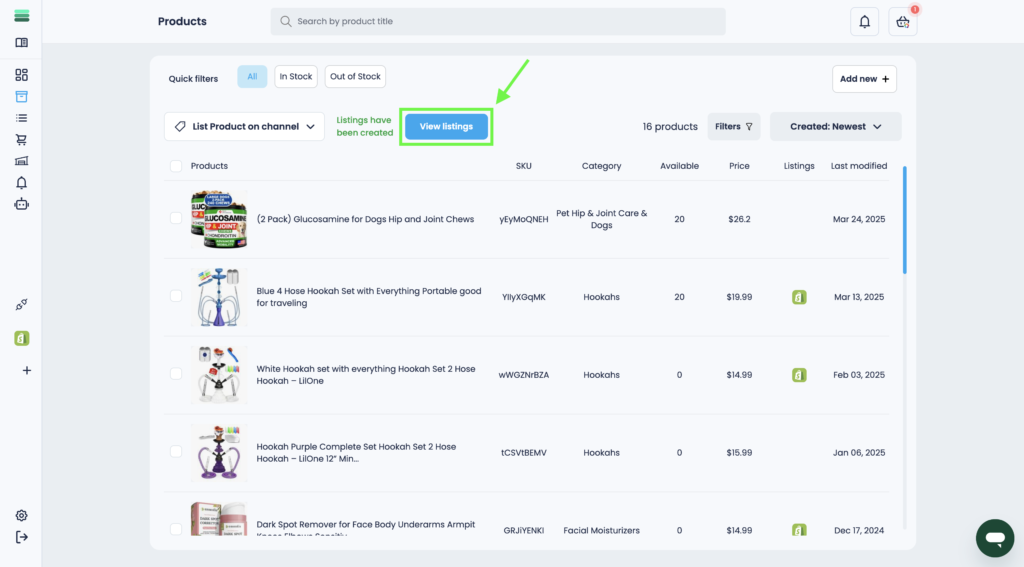
1. Open the side menu and go to the Products section.
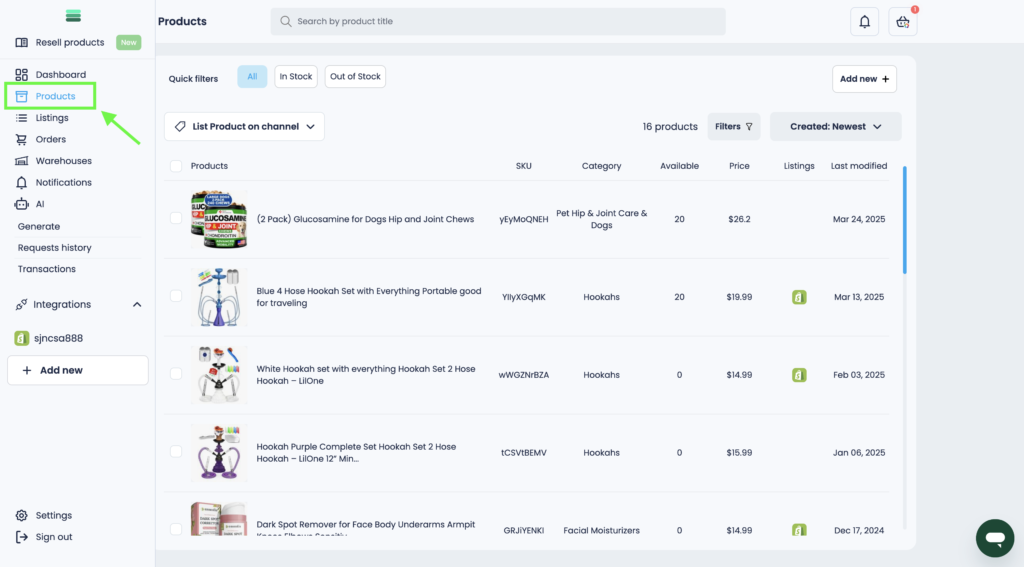
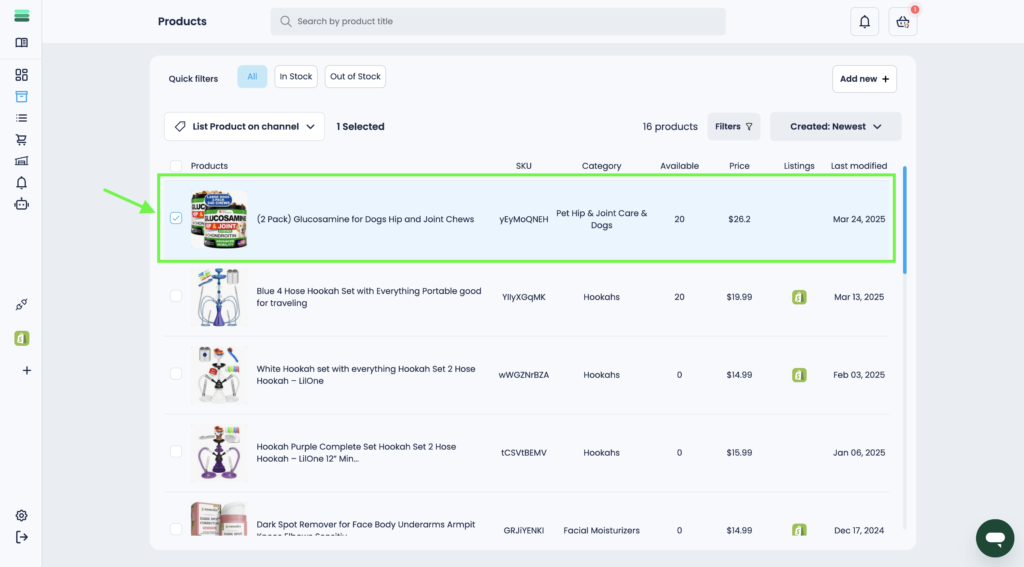
2. Select the product you want to publish. To do this, click on the checkbox next to the product photo.
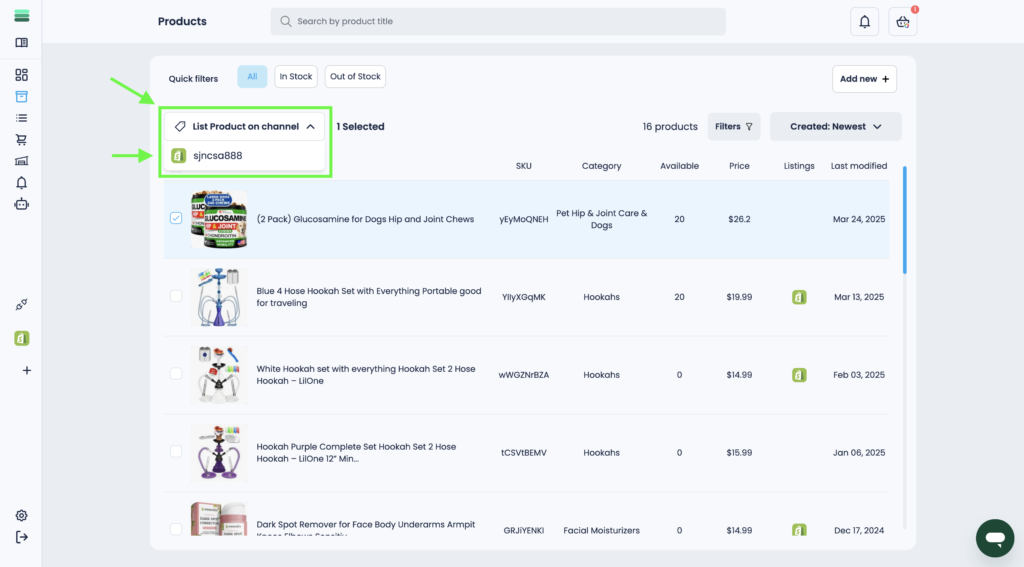
3. After that, open the Product on channel drop-down list and select your store to which you want to publish the listing.
4. A draft listing will be generated in a few seconds. To open it, click the View listings button.
5. In the list of listings, find the draft you just created and go to the listing card. To do this, click on the photo or title of the listing.
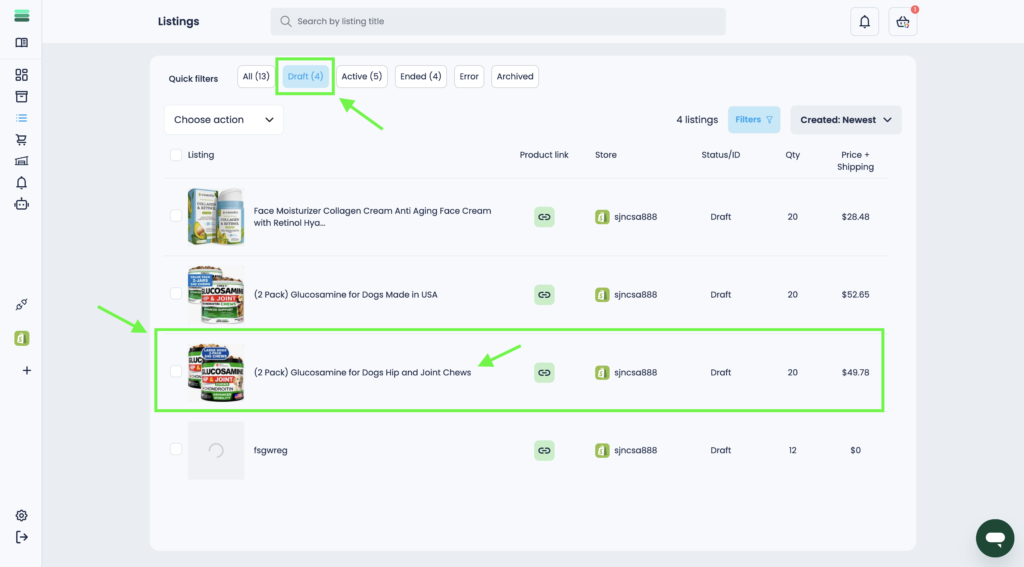
Tip: You can use the filter at the top of the section to find a draft faster. To filter, click the Draft button.
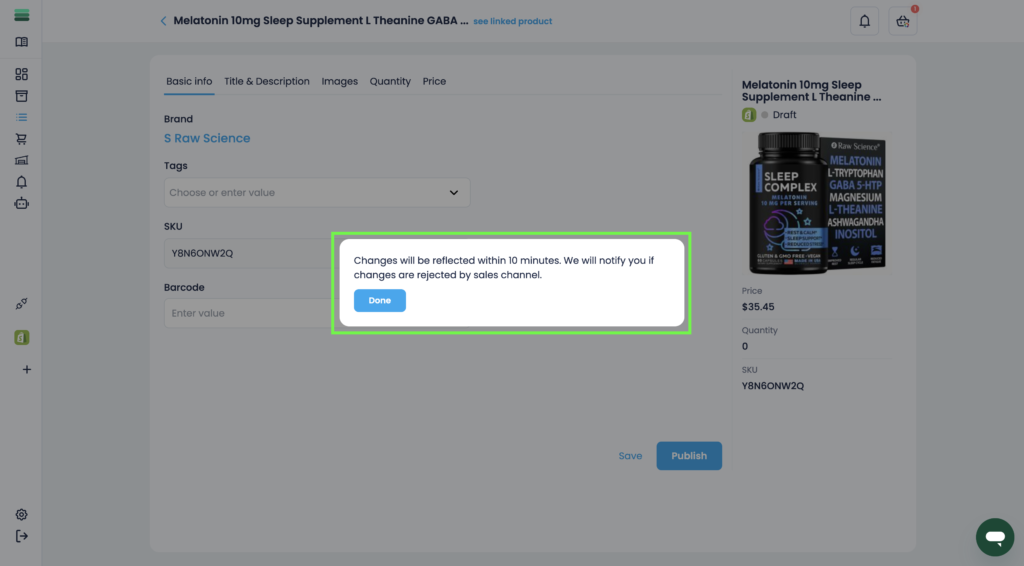
6. To publish the listing, click on the Publish button.
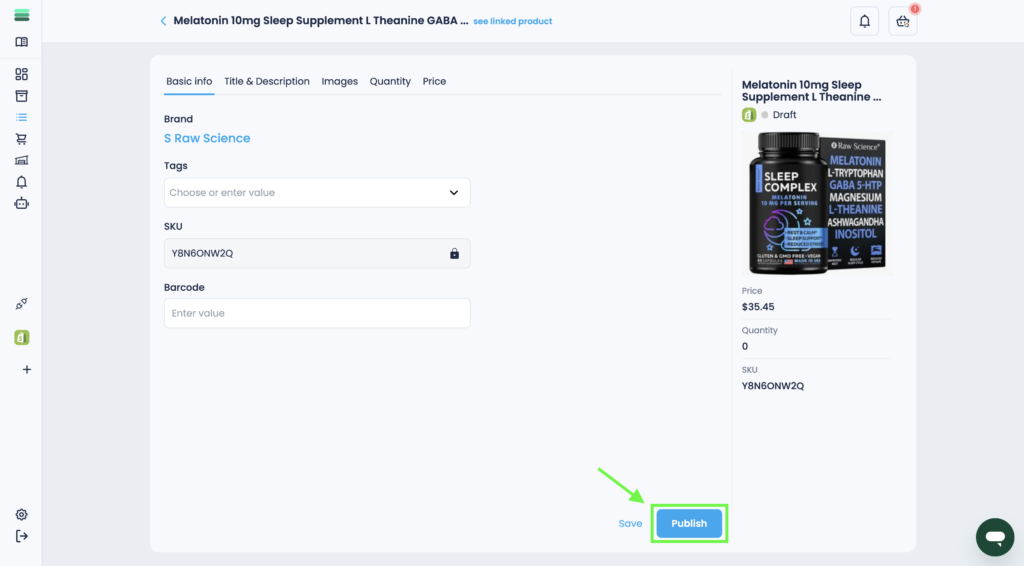
7. Your listing will be published shortly, and its status will change to Active once completed.