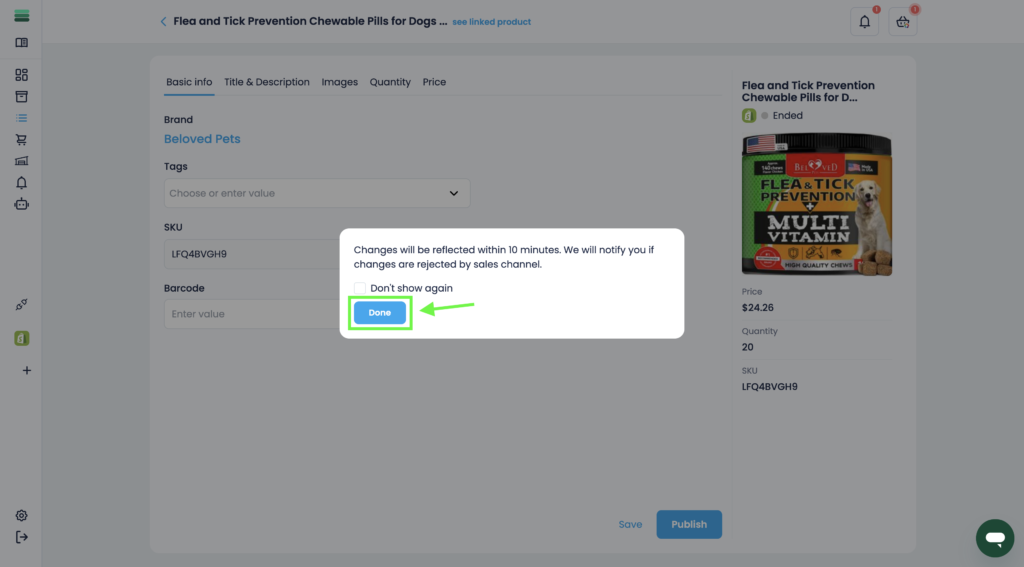
In this article, you will learn how to end a listing in 2 ways: in the listing list and via the listing card.
In this section, you will learn:
- How to end a listing in the listings list.
- How to end a listing from the listing card.
Stages of the process: ending listings through a listing list.
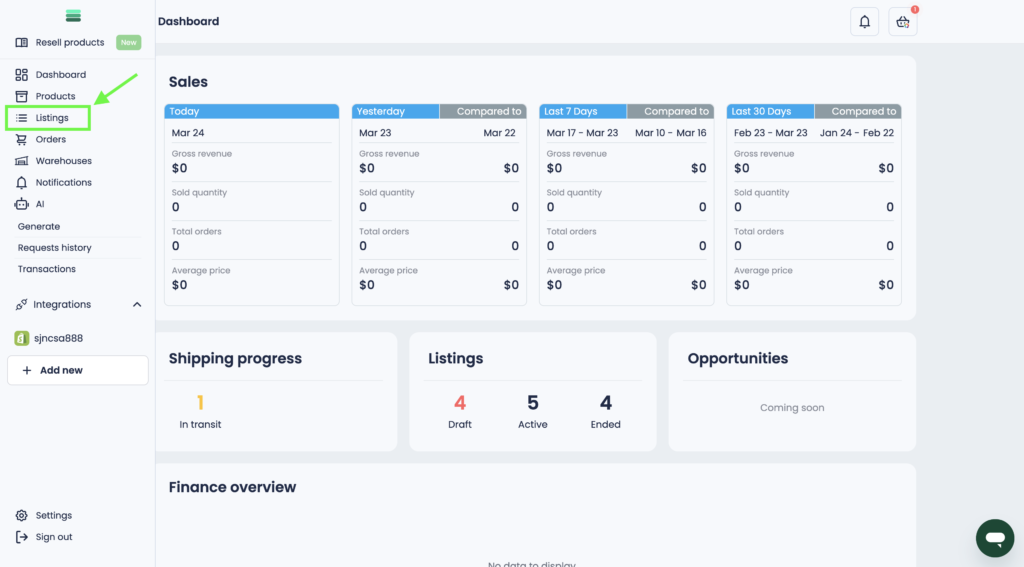
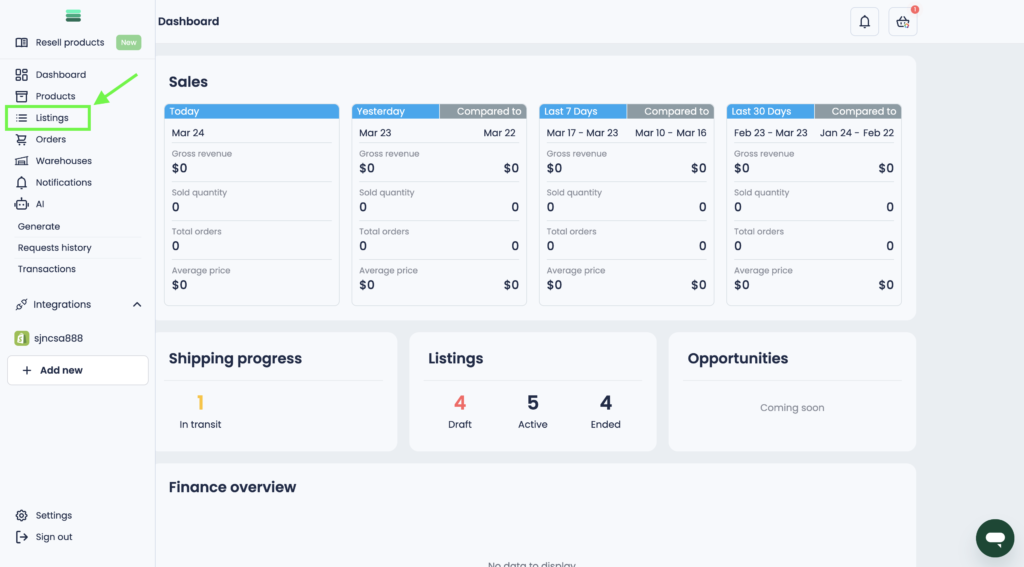
1. To end a listing directly from the Listings section, you need to open the side menu and go to the Listings section.
2. Find and select the listing you want to finish in the list. To do this, click on the checkbox next to the listing photo.
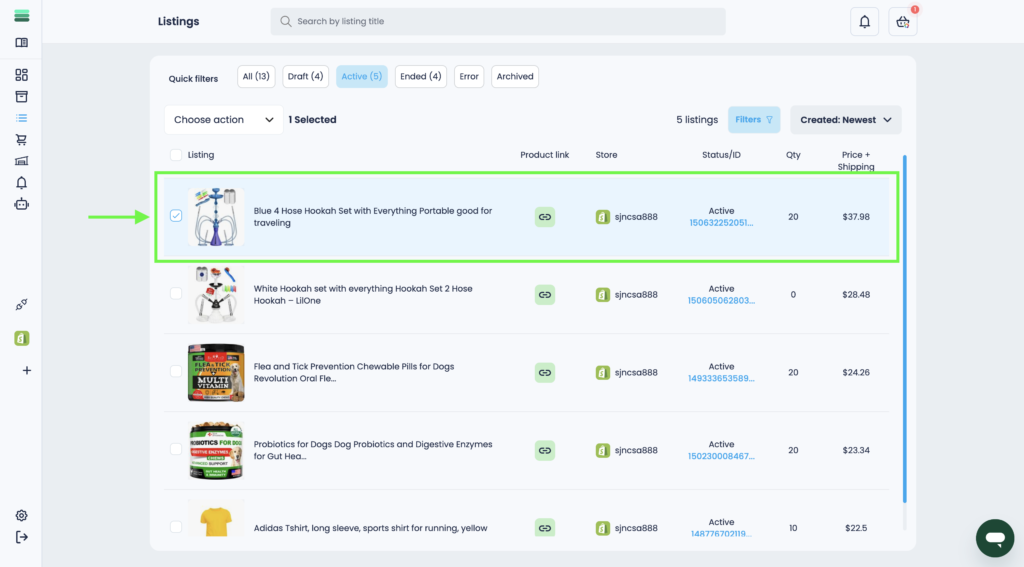
Important: Only active listings can be ended. For convenience, you can use the filter to see only active listings. To do this, click the Active button at the top of the section.
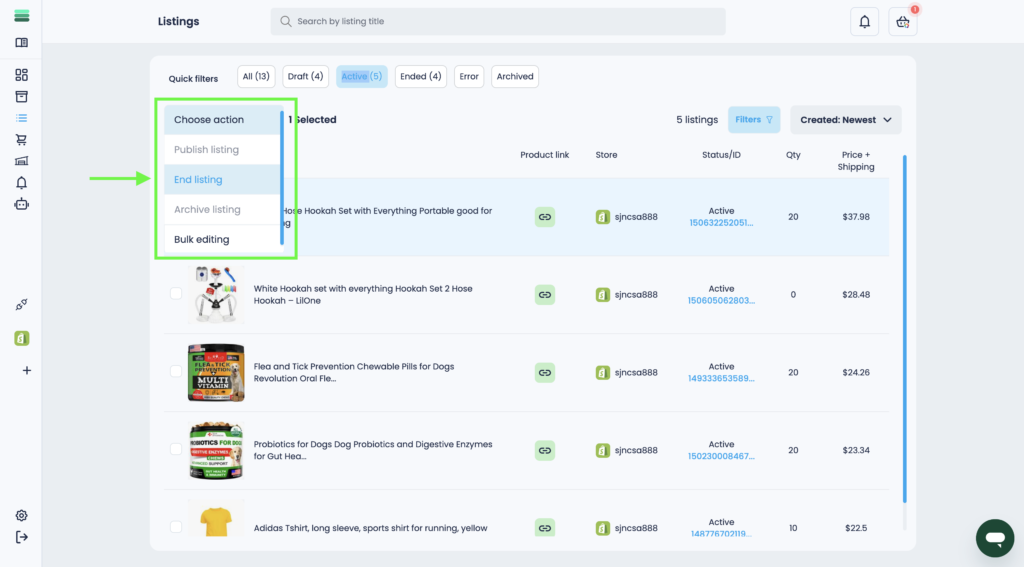
3. After that, click the Choose action drop-down list and select the End listing action.
4. In the pop-up window, confirm your action by clicking on the End listings button.
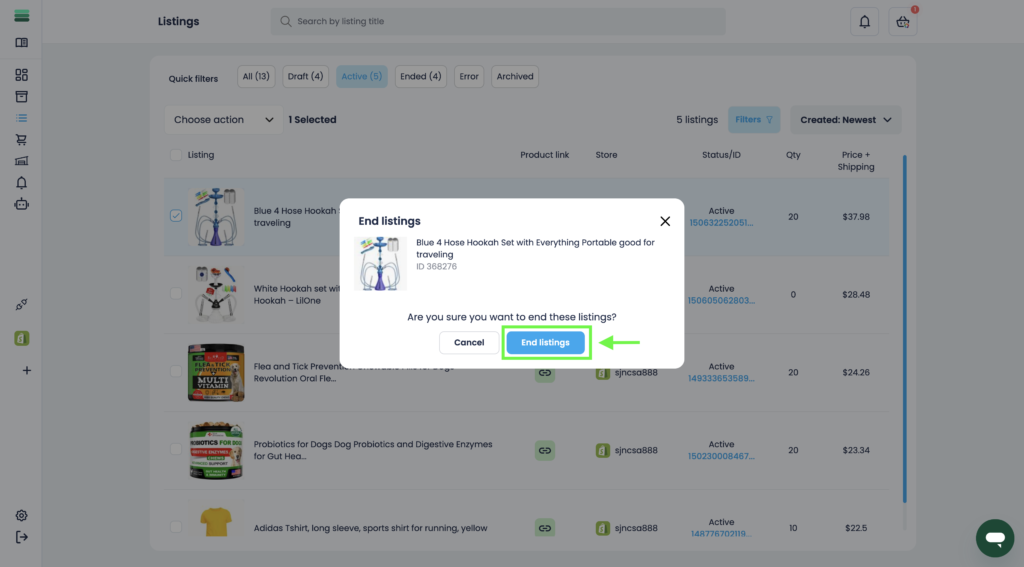
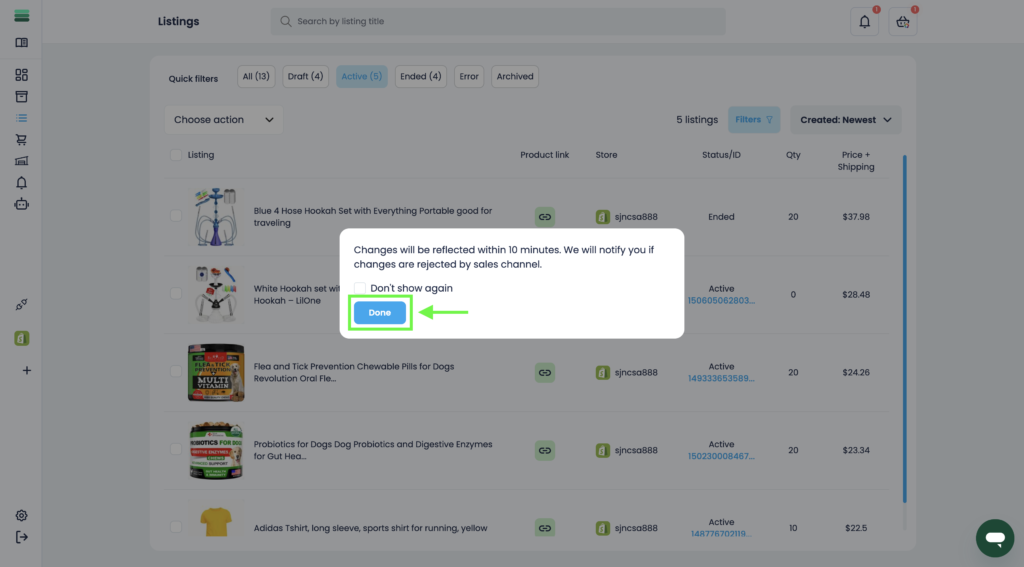
5. Your listing will be successfully ended in a few minutes.
Stages of the process: end of listings in the listing card.
1. To end a listing directly from the Listings section, you need to open the side menu and go to the Listings section.
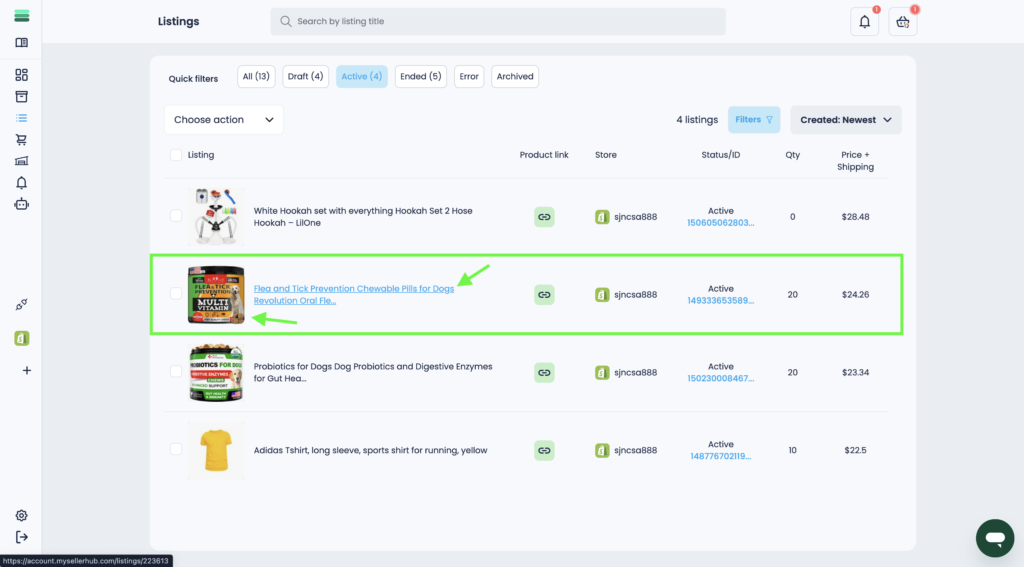
2. Find the desired listing and open the listing card. To do this, click on the photo or title of the listing.
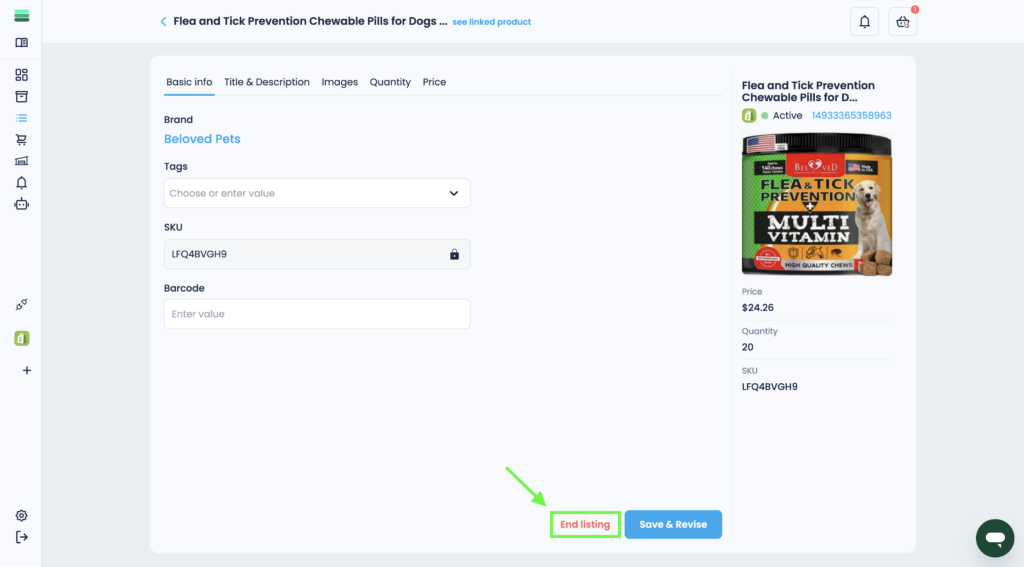
3. In the lower right corner of the listing card, click the End listing button.
4. Your listing will be successfully ended in a few minutes.