Introduction:
In this article, you’ll learn how to edit your listings in bulk.
In this section, you will learn:
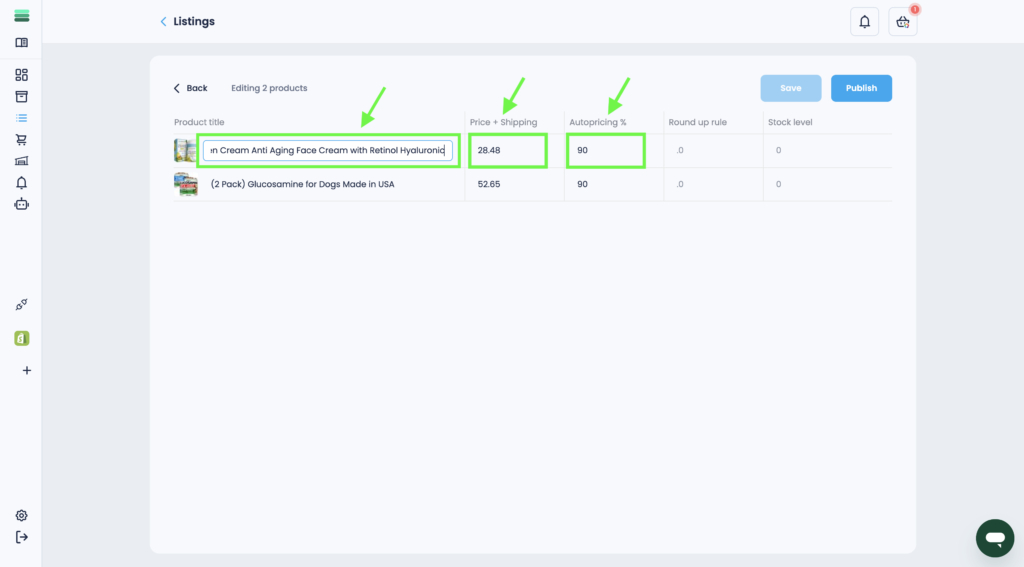
- How to edit Product title in bulk.
- How to edit Price + Shipping in bulk.
- How to edit Autopricing in bulk.
Stages of the process:
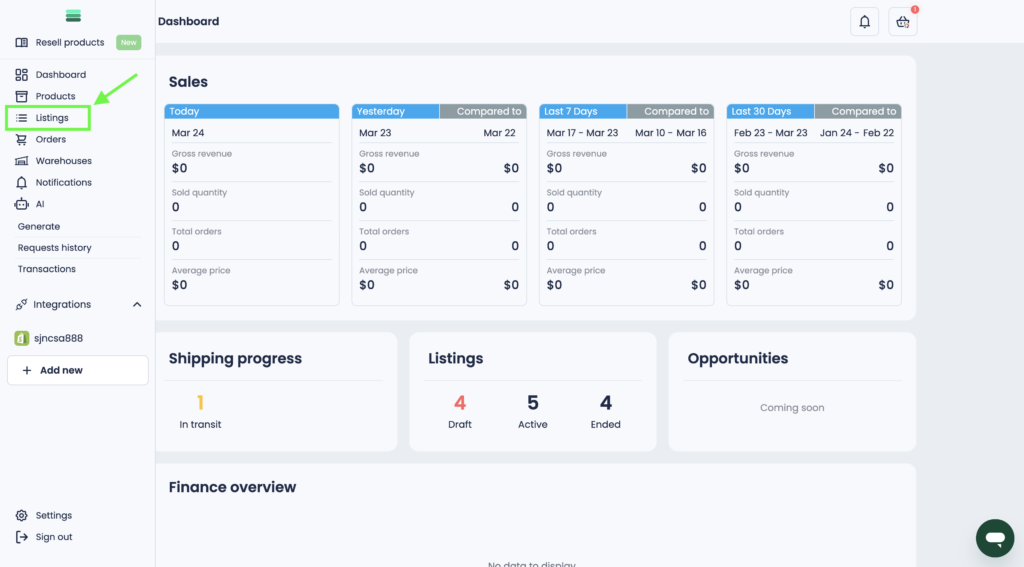
1. Open the side menu and go to the Listings section.
2. Use filtering for bulk editing.
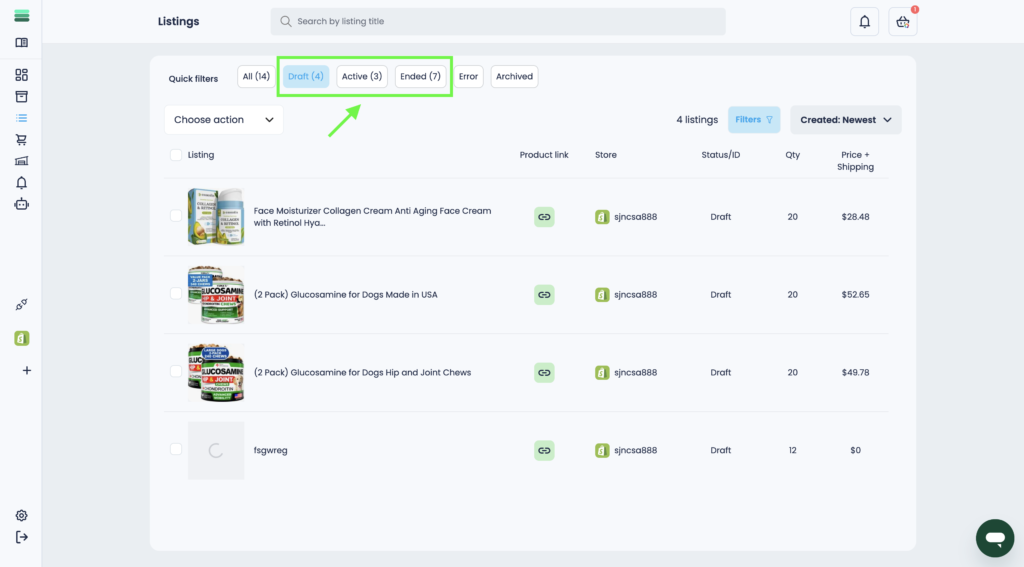
Important: Bulk editing is applied differently for listings in certain statuses.
– for listings in Draft and Ended status: save or publish.
– for listings in the Active status: save + publish (2 actions are performed automatically and sequentially).
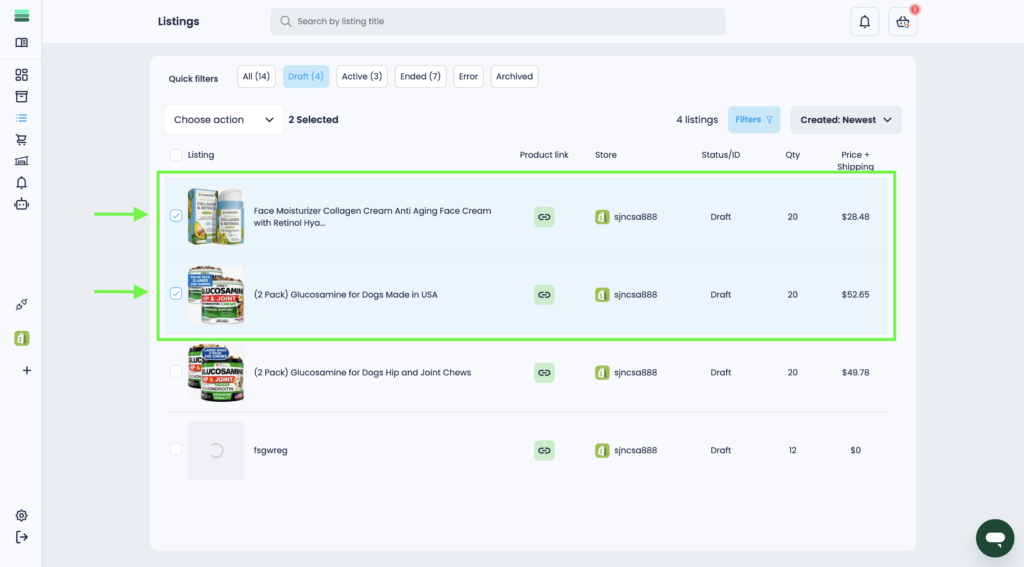
3. In the list of listings, select multiple listings. To do this, use the checkboxes.
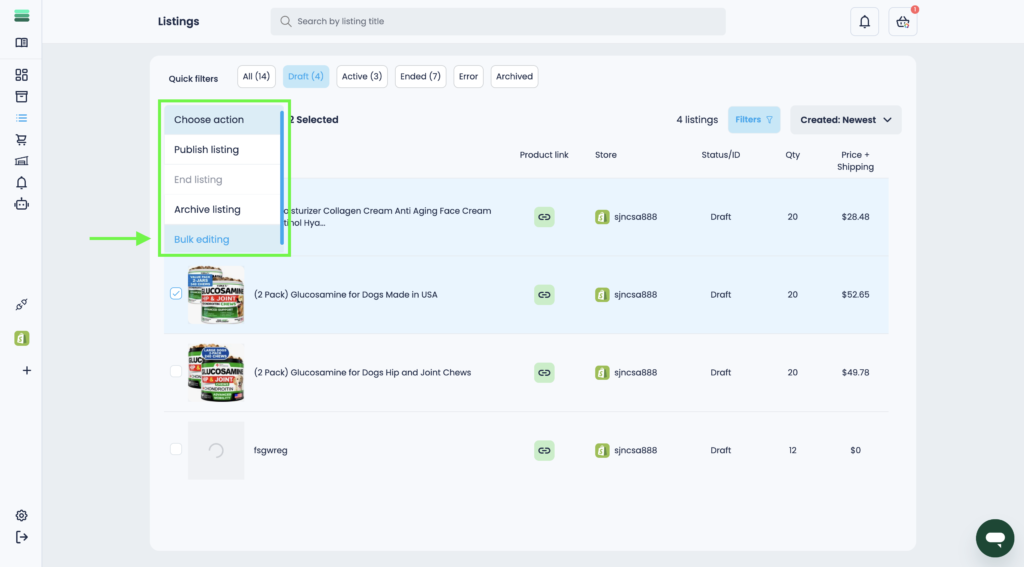
4. Open the Choose action drop-down list and apply the Bulk editing action.
5. To start editing the listing information and data, move the cursor over the corresponding cells and click on them.
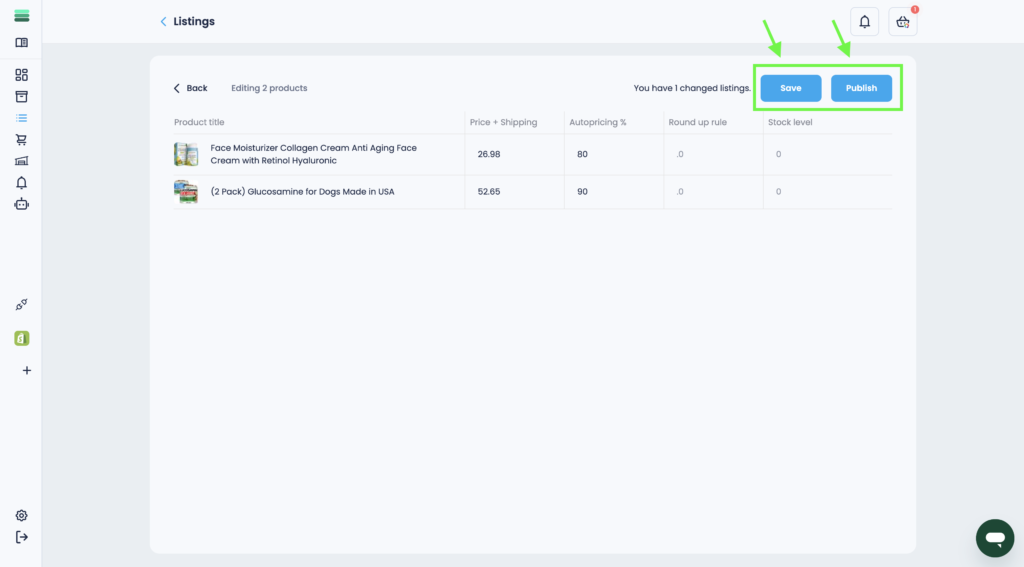
6. After editing is complete, you can save your changes or publish them immediately.
Important:
If you just want to save the changes without publishing the listing, use the Save function.
If you want to save the changes and publish the listing immediately, use the Publish function.