Introduction
In this article, you will learn how to generate highlights to enhance your images using AI.
In this section, you will learn:
- How to generate highlights for photo listings.
Stages of the process:
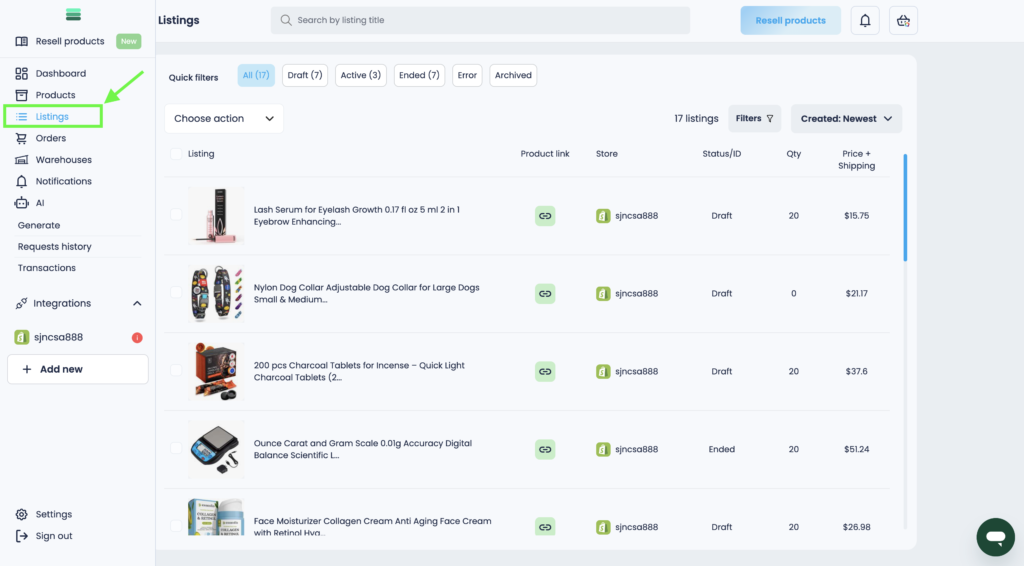
1. In the side menu, open the Listings section and go to it.
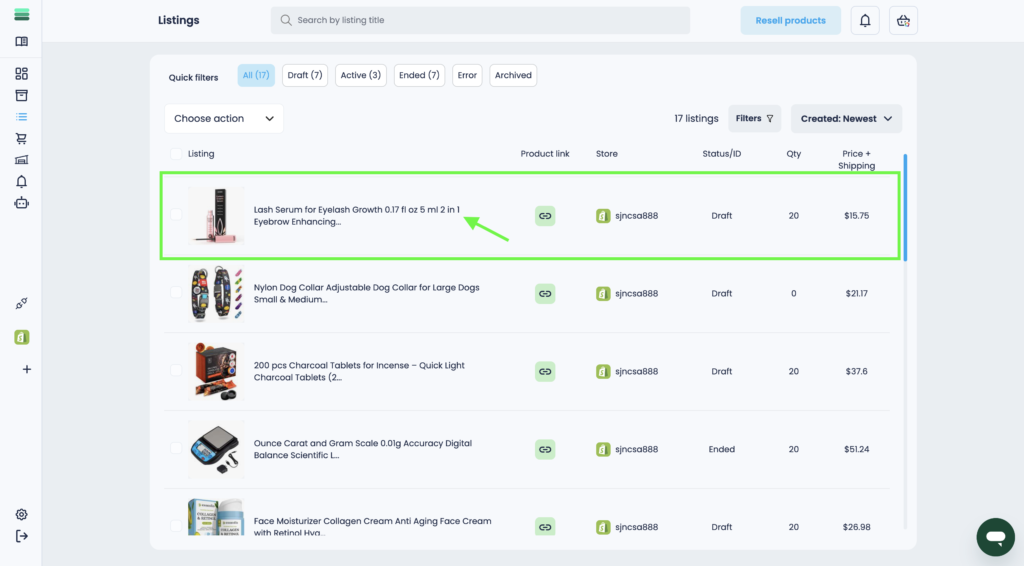
2. Go to the listing card. To do this, click on the photo or the listing title.
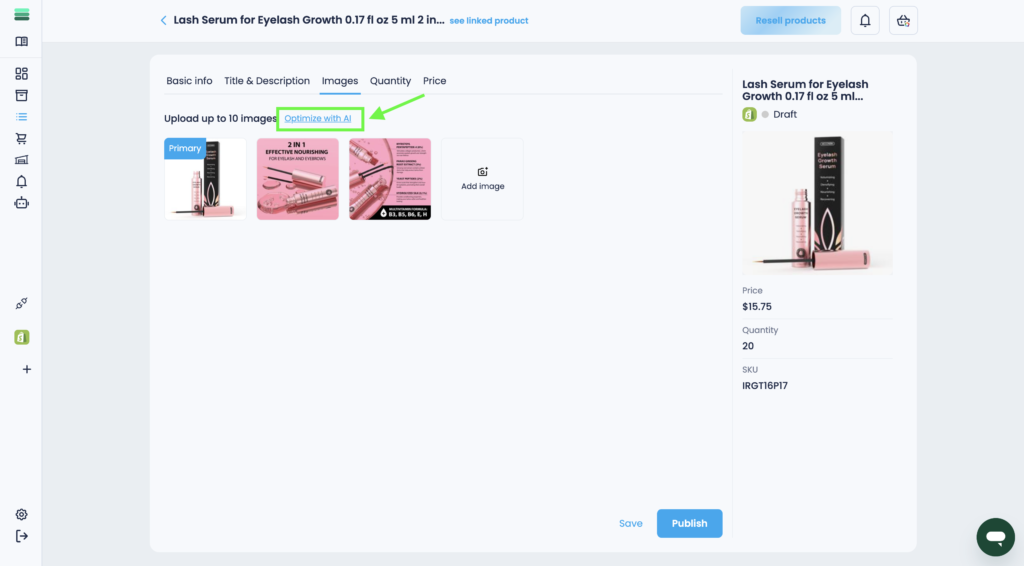
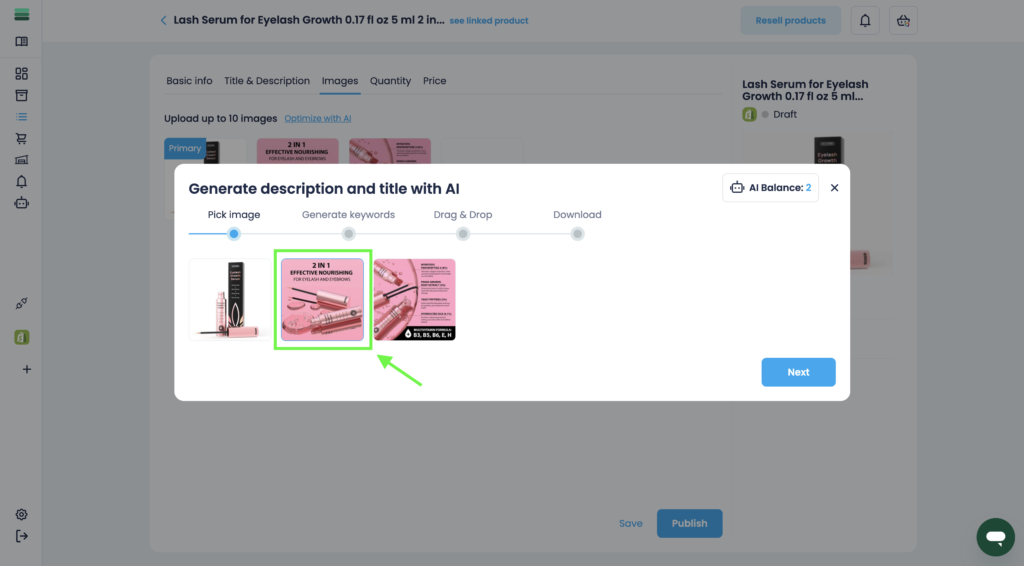
3. In the Images tab, click the Optimize with AI button.
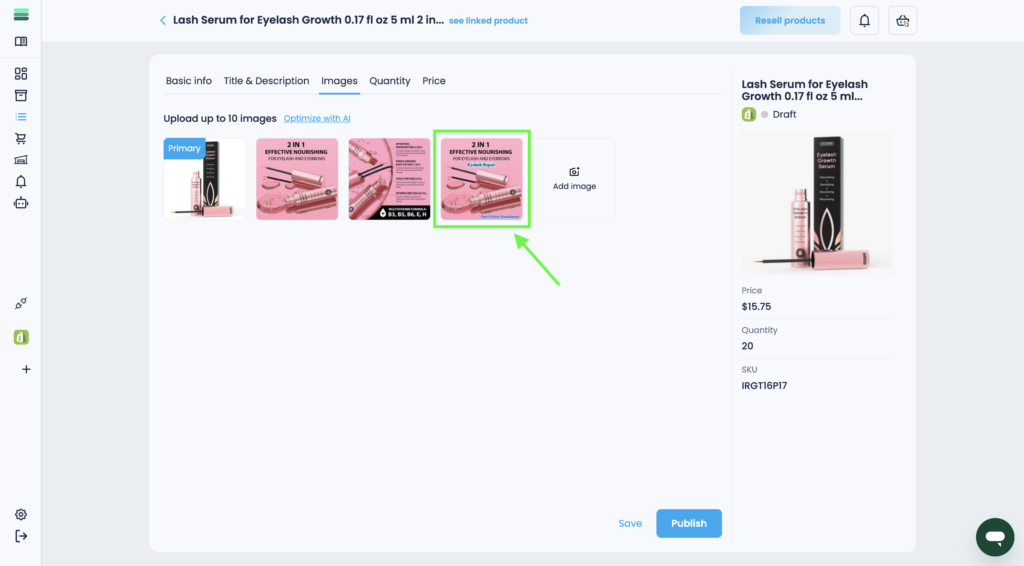
4. In step 1, select the photo you want to enhance.
5. In step 2, generate a list of keywords from the title and description of the listing.
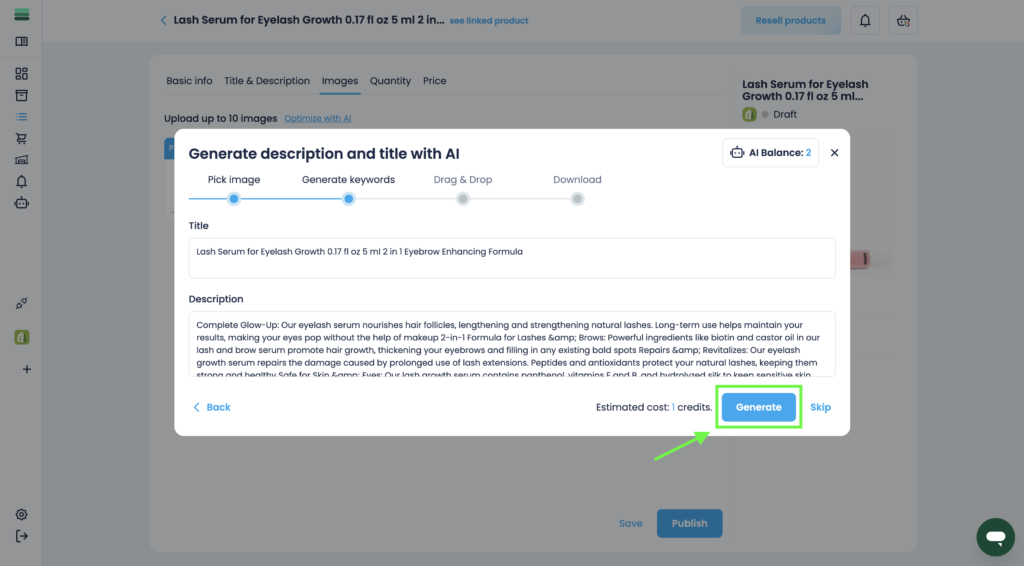
Tip: Please note that keyword generation costs 1 credit.
6. In step 3, you will see a list of generated keywords that you can already work with. Select 1 keyword and drag it onto your image.
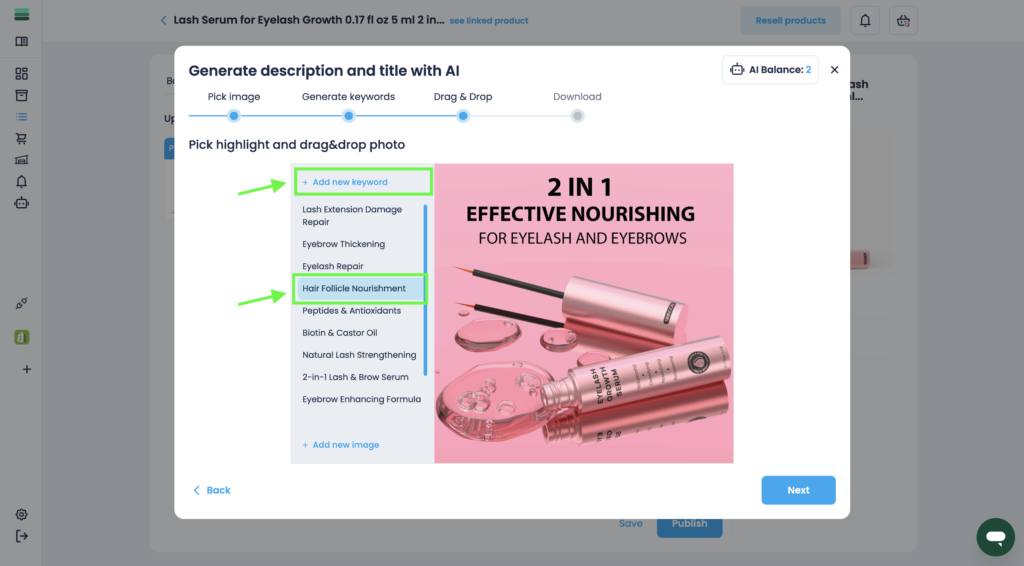
Tip: You can also add keywords manually using the Add New Keyword feature
7. After you drag a keyword onto your photo, you can edit it or put it where you want it.
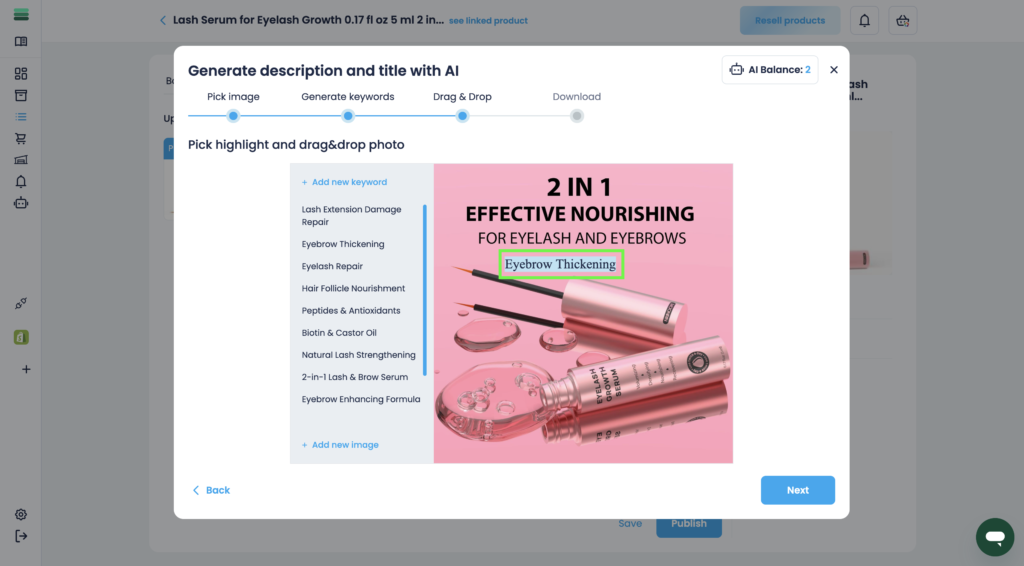
8. To edit a keyword, click on it. You’ll see a toolbar with a set of options.
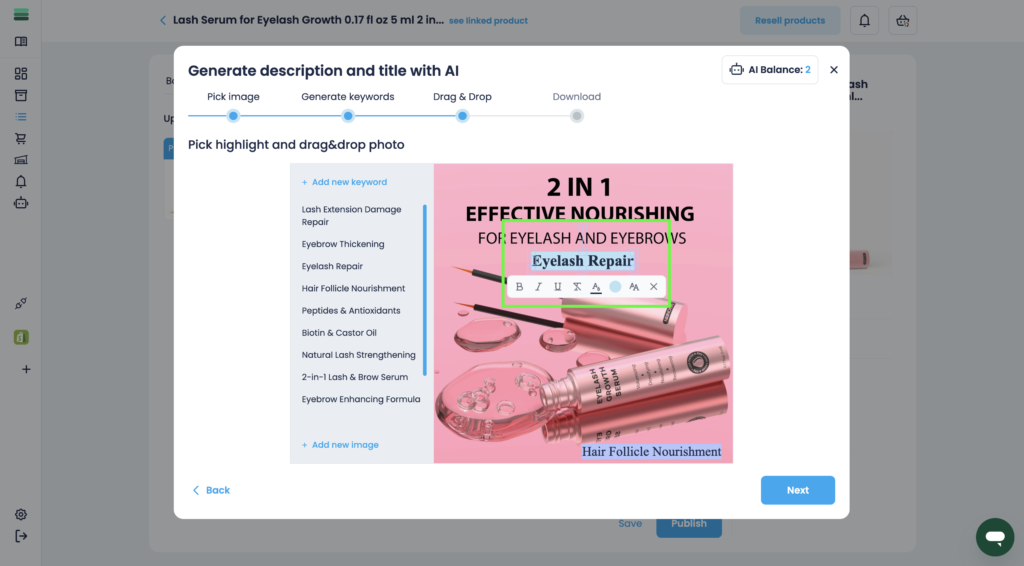
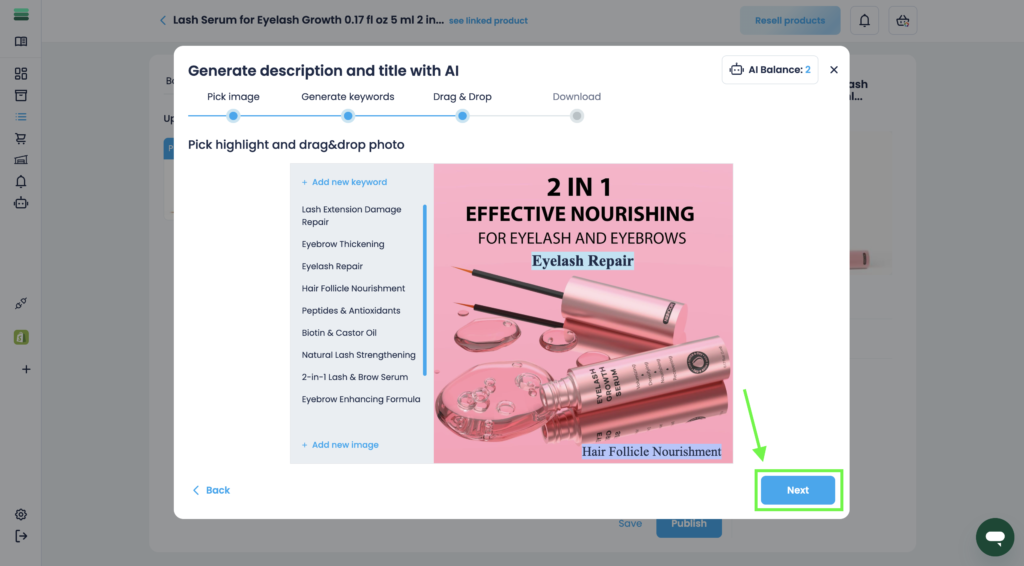
9. After you’ve finished working with the keywords, you’ll need to download the result. To do this, use the Next button in the lower right corner.
10. The final step is to remove watermarks and save the image. To do this, click the Remove watermark & Save button.
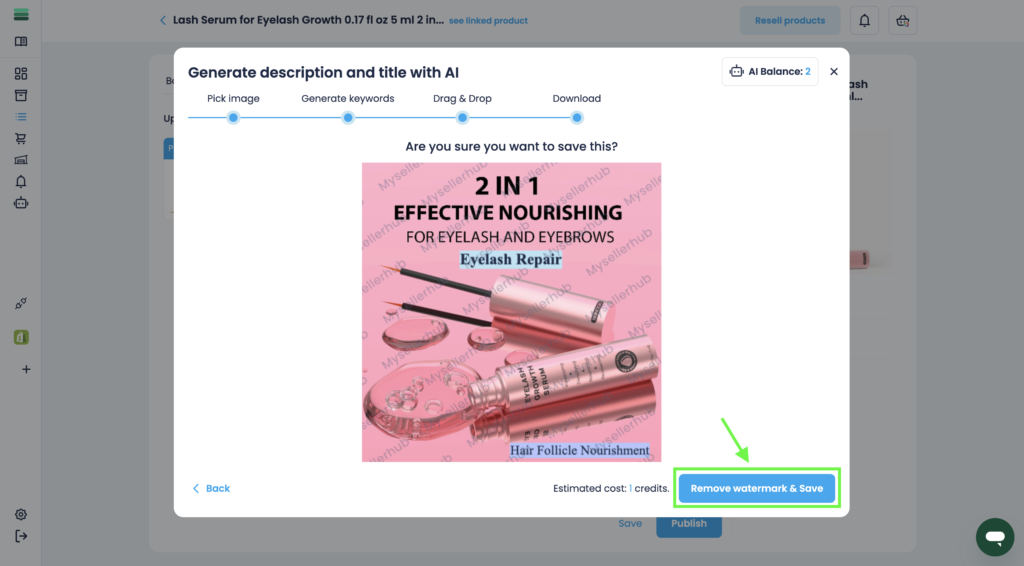
11. After successful saving, the photo will automatically appear in your Images section of the listing card.