Introduction:
In this article, you will learn how to update your Mysellerhub password.
In this section, you will learn:
- How to change your password.
- How to save the new password.
Stages of the process:
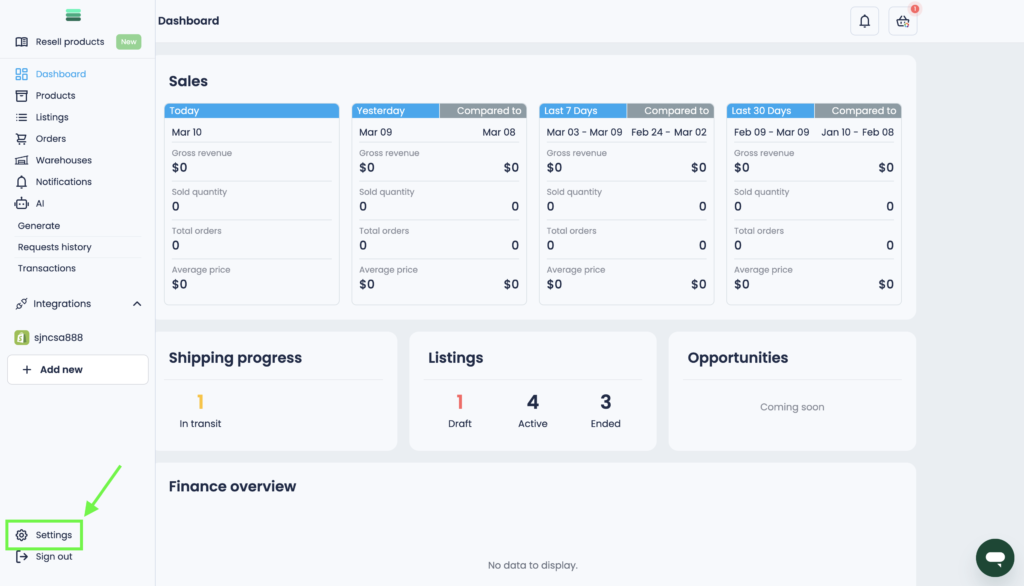
1. Open the side navigation bar and go to the Settings section at the bottom.
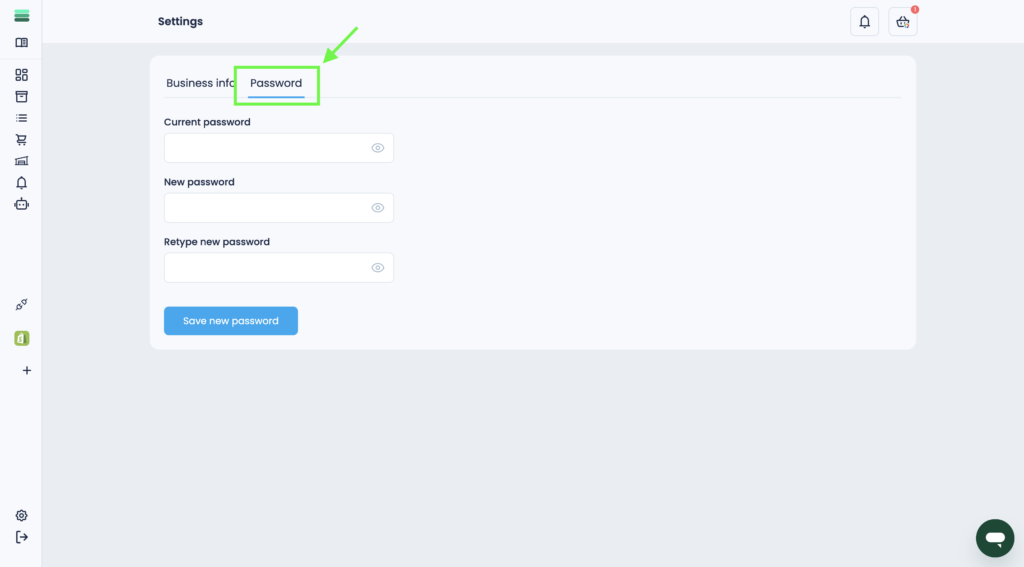
2. Select the Password tab.
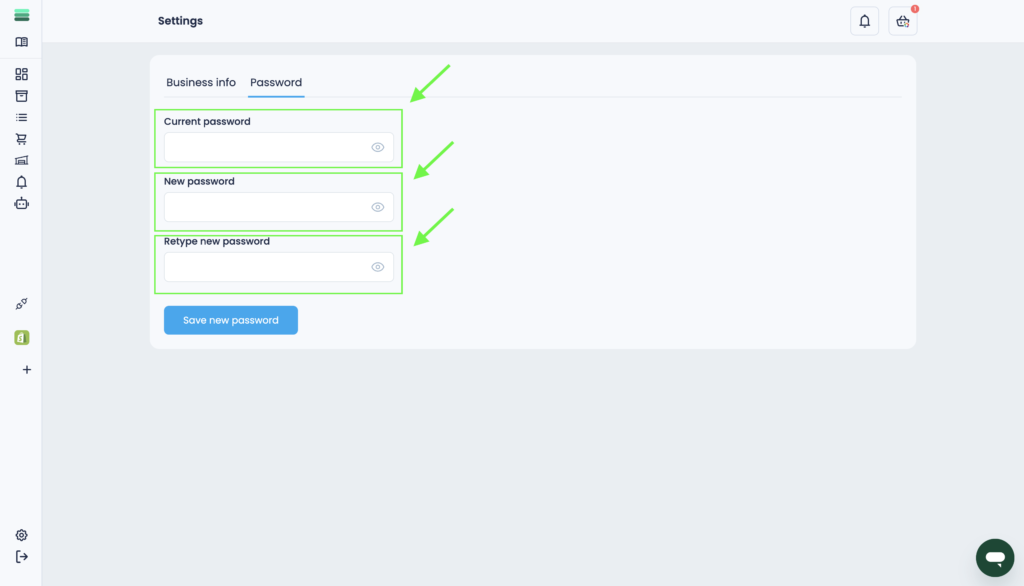
3. To change your password, do the following:
• In the Current password field, enter your existing password.
• In the New password field, enter your desired password.
• In the Retype new password field, enter the new password again.
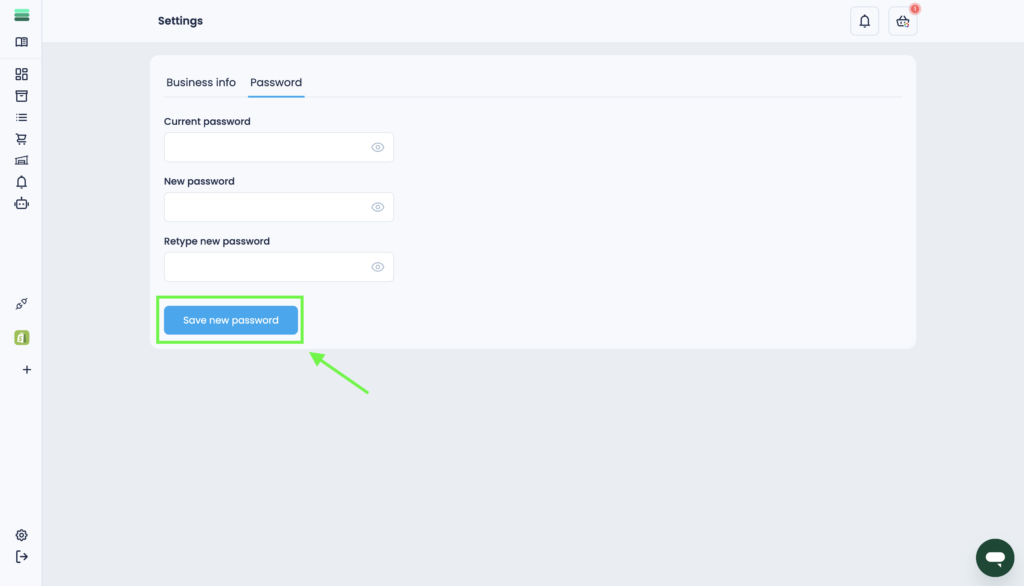
4. After entering your new password, click the Save new password button to update your account.
Tip: Make sure your new password is strong by using a mix of uppercase letters, numbers, and special characters.
Final Thoughts:
You can change your password at any time in the Settings > Password section. Always use a secure password to protect your account.